Day 05: Building a Manual NAT Gateway (No 'Cloud NAT' Allowed)
We build a router from scratch using Linux primitives. A step-by-step guide to forwarding, masking, and routing traffic manually.
 Pratik Shetti
🎯 The Objective
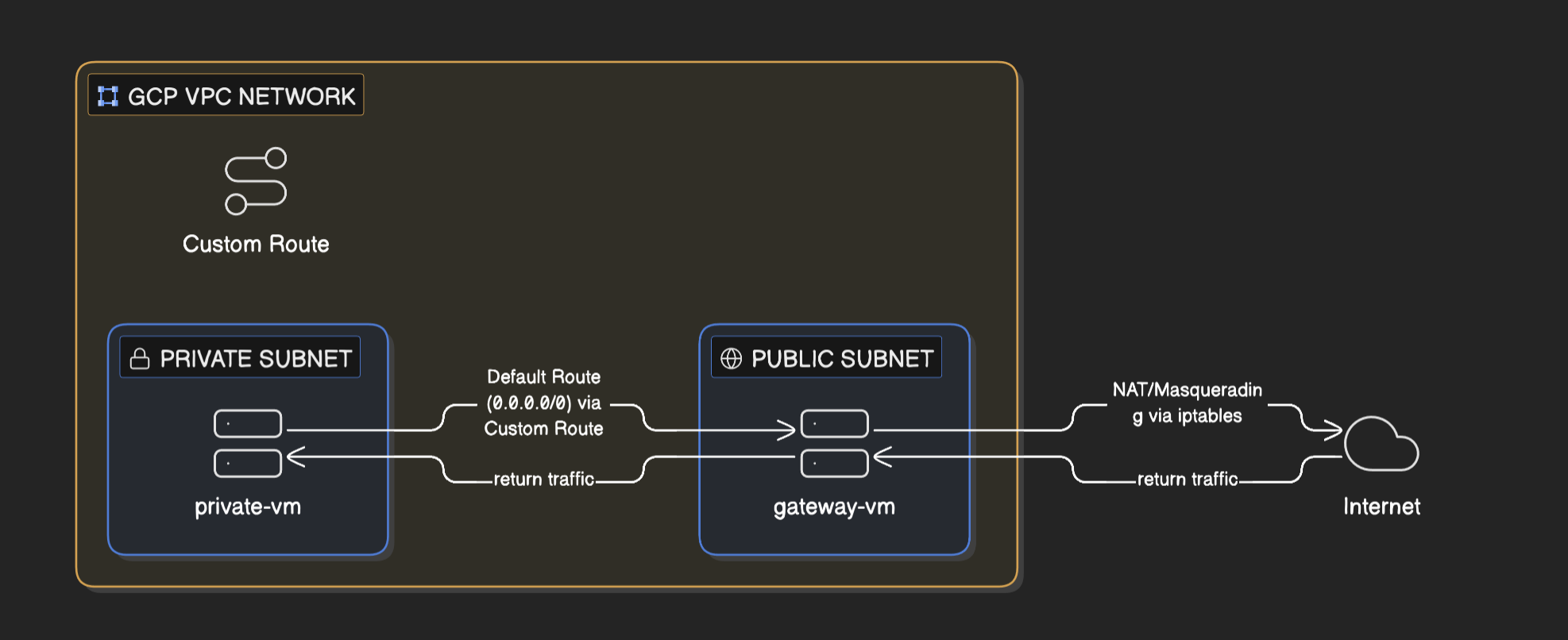
In the cloud, we usually click a button to enable "Cloud NAT" so our private servers can update software. Today, we reject the easy button.
We are going to manually build a Linux Router. By the end of this lab, you will understand:
- Packet Routing: How to force traffic through a specific VM.
- Kernel Forwarding: How to unlock router capabilities in Linux.
- Masquerading (Source NAT): How
iptablesrewrites packet headers.
🏗️ Phase 1: The Infrastructure Setup
We need two VMs and a custom Route.
1. Create the Gateway VM (The Router)
This machine will sit on the edge of the internet.
- Go to: Compute Engine > Create Instance.
- Name:
gateway-vm - Region:
us-central1(or your preferred region). - Machine Type:
e2-micro. - Networking (CRITICAL):
- Expand Advanced Options > Networking.
- Find Network interfaces.
- IP Forwarding: Click ENABLE. (If you miss this, Google will block your traffic).
- Network Tags: Add
nat-gateway.
- Create.
2. Create the Private VM (The Client)
This machine will be trapped in a private subnet.
- Name:
private-vm. - Region: Same as Gateway.
- Networking:
- Network Tags: Add
no-ip. - External IPv4 address: Select NONE. (We want zero direct internet access).
- Network Tags: Add
- Create.
3. Create the Route (The Map)
We need to tell the VPC network to send internet traffic from the Private VM to the Gateway.
- Go to: VPC Network > Routes > Create Route.
- Name:
route-private-to-internet. - Network:
default. - Destination IP range:
0.0.0.0/0(The Internet). - Priority:
800(Lower number = Higher priority than default). - Instance Tags:
no-ip(This route ONLY applies to our Private VM). - Next Hop: Specify an instance ->
gateway-vm. - Create.
🧪 Phase 2: The "Control" Test
Let's prove the connection is broken before we fix it.
- SSH into
private-vm.- Since it has no public IP, you must use the IAP Tunnel.
- Command:
gcloud compute ssh private-vm --tunnel-through-iap
- Try to ping Google:
ping -c 2 8.8.8.8 - Result: 100% Packet Loss. The traffic hits the Gateway, but the Gateway drops it.
🔧 Phase 3: Configuring the Router
Open a New Terminal window and SSH into gateway-vm.
Step 1: Enable Kernel Forwarding
By default, Linux is paranoid. It drops packets not destined for itself. We must flip a switch to enable "Router Mode."
# Check status (0 = Disabled, 1 = Enabled)
sysctl net.ipv4.ip_forward

# Enable it instantly
sudo sysctl -w net.ipv4.ip_forward=1
Step 2: The "Interface Name" Trap (READ THIS)
Most tutorials tell you to use eth0. They are wrong. Modern Linux (Debian/Ubuntu) often uses "Predictable Network Interface Names" like ens4.
Find your interface name:
ip link show
Look for the interface that is UP (usually #2). It is likely ens4.
Step 3: Enable Masquerading (NAT)
We need to tell iptables to take packets coming from the private VM and "sign" them with the Gateway's Public IP.
Run this command (replace ens4 if your interface name is different):
sudo iptables -t nat -A POSTROUTING -o ens4 -j MASQUERADE
-t nat: Edit the NAT table.-A POSTROUTING: Append to the "Post Routing" chain.-o ens4: Output interface (Exit door).-j MASQUERADE: Rewrite the source IP.
✅ Phase 4: Verification
Go back to your private-vm terminal.
Ping Google:
ping -c 2 8.8.8.8
Result:
64 bytes from 8.8.8.8: icmp_seq=1 ttl=113 time=12.4 ms
SUCCESS! The Private VM is now surfing the web via the Gateway.
🧠 Key Takeaways & Troubleshooting
The "eth0" Trap: If traffic doesn't flow, you likely applied the iptables rule to the wrong interface. Flush rules with sudo iptables -t nat -F and try again with the correct name from ip link show.
Cloud vs. OS: Enabling "IP Forwarding" in the GCP Console allows the packet to reach the VM. Enabling sysctl allows the Linux Kernel to process it. You need both.
Persistence: The sysctl and iptables rules we wrote are temporary. If you reboot the Gateway, they disappear (unless you save them to config files).
The Golden Command
# The command that turns a server into a router
sudo iptables -t nat -A POSTROUTING -o [INTERFACE] -j MASQUERADE